
In the Optivalue.ai platform, a user's role determines what they can do in your account: view documents, upload them, delete them, manage folders or invite other people. Since the update of 16/09/2026 (version 1.2.8), you are no longer limited to fixed roles: you can create your own roles and choose their permissions one by one.
What changes
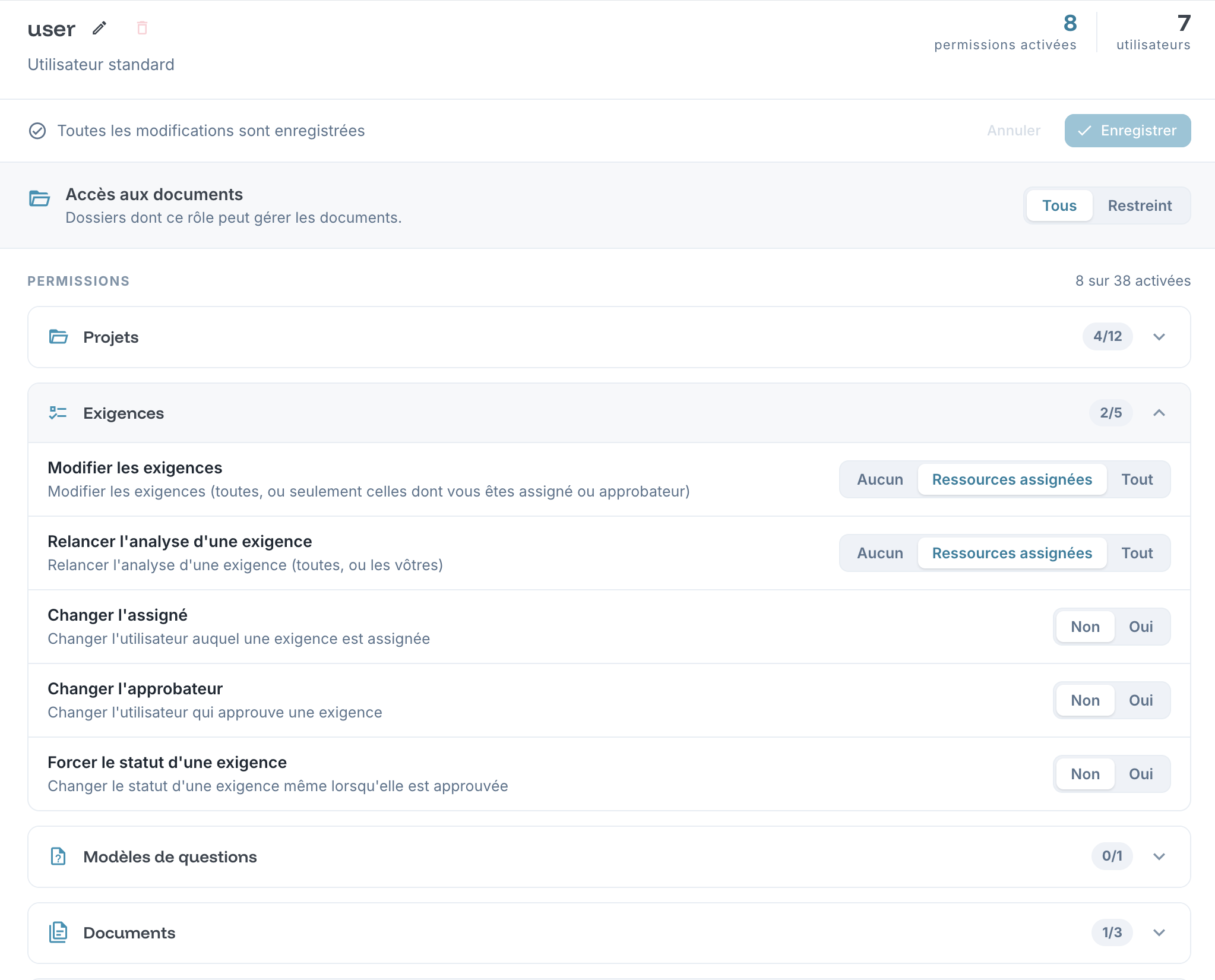
- Permissions action by action: each permission covers a specific action, for example access to documents, upload, deletion, folder management or inviting users.
- Three default profiles: administrator, manager and user. They replace the former fixed roles.
- Nothing for you to do: the roles already assigned to your users were carried over automatically during the update.
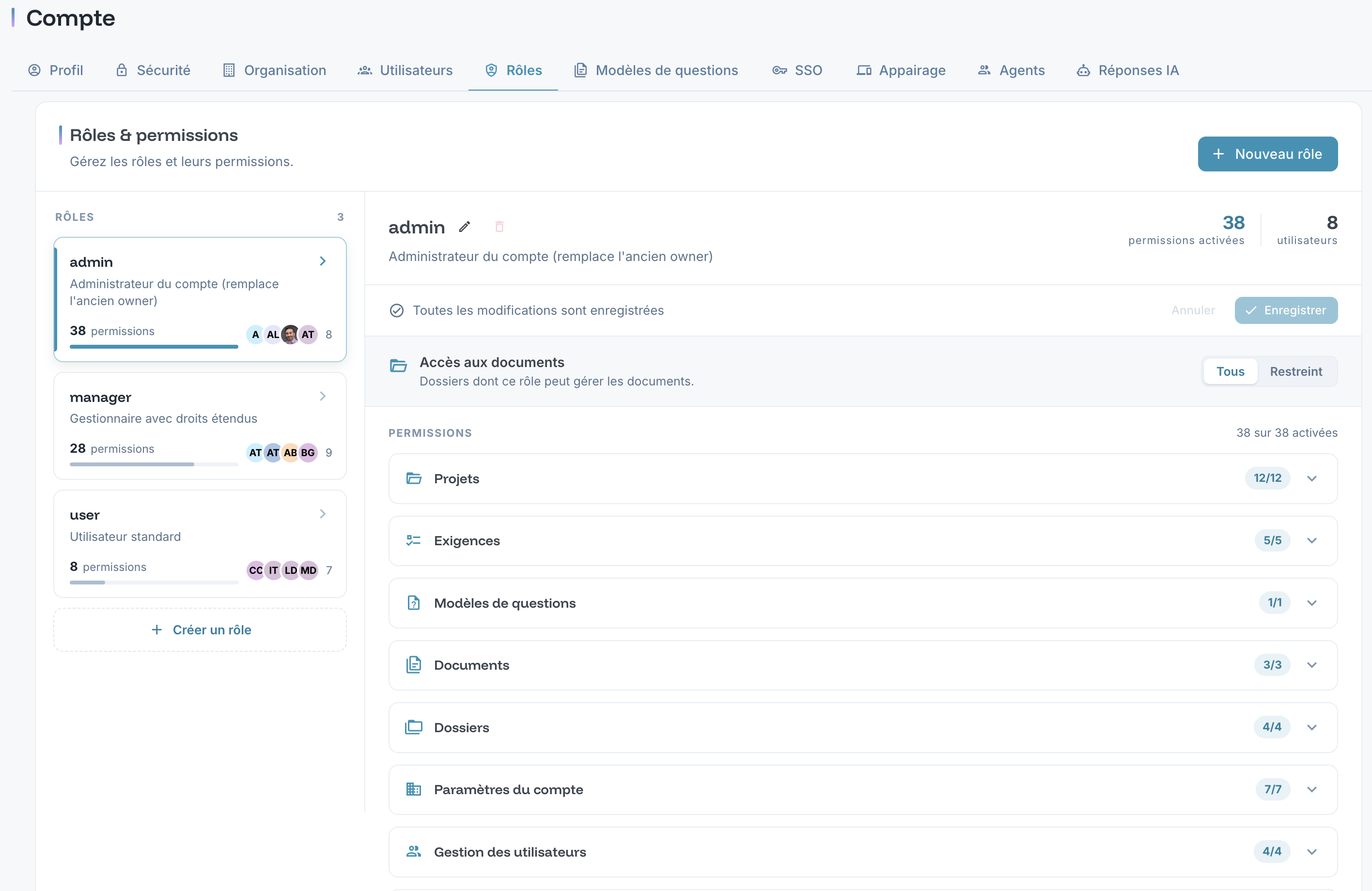
Creating and managing a custom role
- Open the account settings, then the "Roles and permissions" tab.
- Create a new role.
- Adjust its permissions, which are grouped by category.
The same tab lets you edit an existing role or delete it. A role that is still assigned to users cannot be deleted: first reassign those users to another role, then delete it.
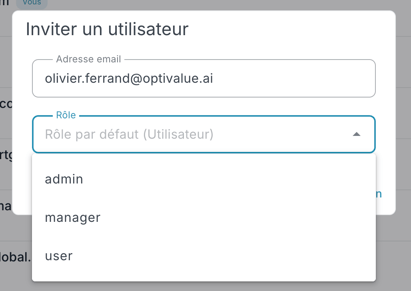
Assigning a role to a user
- When inviting: the role is chosen directly in the invitation form.
- Afterwards: the role is changed from the user list, including for an invitation that is still pending.
Why an option does not appear
- A role is missing from the list offered: you can only assign roles whose rights do not exceed your own.
- Your own role cannot be changed: nobody can change their own role. The change must be made by another person with the necessary rights.
- A button does not appear: the interface only shows the actions your role allows. An action for which the permission is missing is also refused by the platform.
If a user cannot carry out an action they need, check their role's permissions in the "Roles and permissions" tab. If the issue persists, raise a ticket stating the role name and the action concerned.