
Here you link your Microsoft SharePoint to your Optivalue.ai documents. A cloud connector is that link between an online storage service and your documents. The documents in the folders you choose are imported, then kept up to date.
What you need before you start
- The right to manage cloud connectors. It is granted to account administrators, and an administrator can add it to a role in the account settings.
- The right to edit labels, in order to put some on a folder.
- A Microsoft account with access to the folders you want to synchronise.
Opening the connectors tab
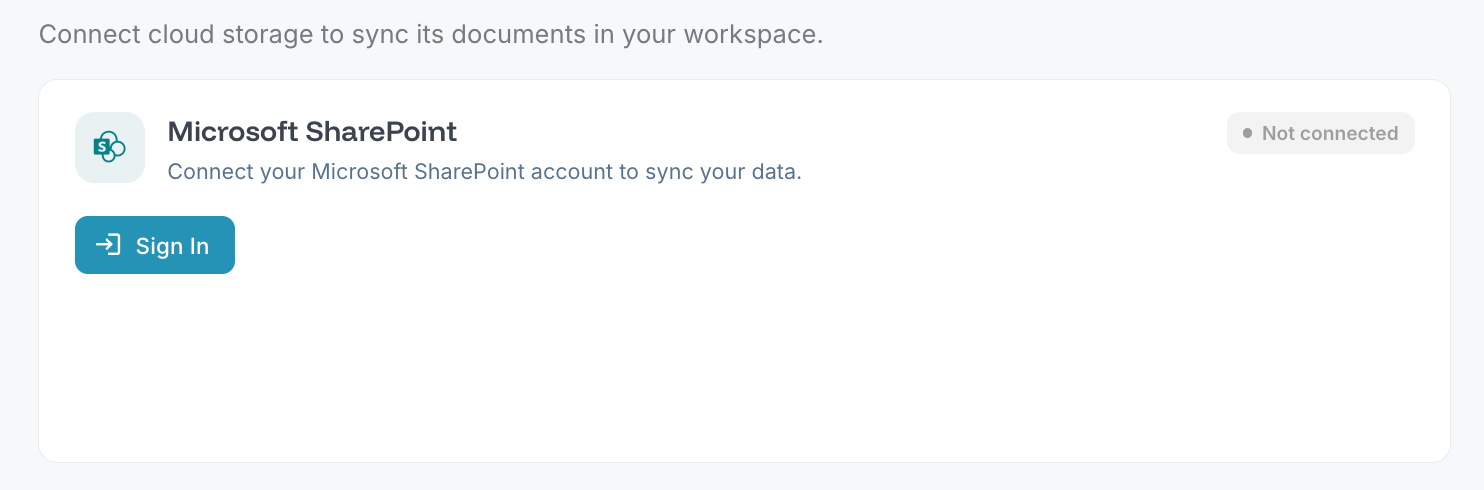
Open Account, then Connectors. You find the card named "Microsoft SharePoint" there. It shows the state of the service: "Not connected" before the first connection, then connected, or inactive.
Connecting to Microsoft SharePoint
- Click "Sign In" on the card: you are redirected to the Microsoft sign-in page.
- Sign in and accept read access to the SharePoint sites.
- Back in the application, choose the SharePoint site in the card's drop-down list.
The access requested stays read-only: your cloud files are never changed. Each person connects their own Microsoft account. The synchronised documents, however, are shared with the whole workspace.
Choosing the folders to synchronise
- Start the folder selection from the card, browse the site tree, then confirm the folder you want.
- A window opens for the labels of the selected folder. Tick one or more existing labels, create one, or continue without any label.
- The folder appears in the list of files and folders, and the synchronisation starts.
Sub-folders are included. A folder already held inside a tracked folder is refused.
The labels on a folder
A label put on a folder applies to all its documents, including those arriving later. Click the label icon on the tile to change it. The change applies at once to every document in the folder.
These are the same labels as in your documents: create them wherever you prefer. In the document list, a label coming from a folder carries a cloud icon and names that folder. To remove it, go through the folder.
A label you add yourself to a document stays yours, even when the folder's labels change. Deleting a folder removes its documents, never a label.
One point to watch: labels also serve to limit what some roles can see. Putting a label on a folder therefore changes at once who can see its documents.
Removing a folder or disconnecting
- Bin icon on a folder: its documents are deleted from the workspace and the quota is released. Your cloud files stay untouched, and a summary appears.
- Disconnecting the service: the connection is deleted, with all its folders and their documents.
Deletion is refused when one of the documents serves in an active project. Remove it from the project, or archive the project, then try again.
To follow how far a synchronisation has got, or to understand a skipped file, see the FAQ on cloud folders.