
When you regularly handle the same type of questionnaire (security, RFP, ESG, due diligence, and so on), you can save it as a template. Optivalue.ai then remembers its structure (the detected requirements and columns) so you can reuse it in future projects without re-running extraction. Here is the step-by-step process.
1. Saving a questionnaire as a template
Step 1 : Create your project. Click Projects and create a new project. On step 1/4 Project information, give it a name (and, if needed, a description, collaborators and the answer language).
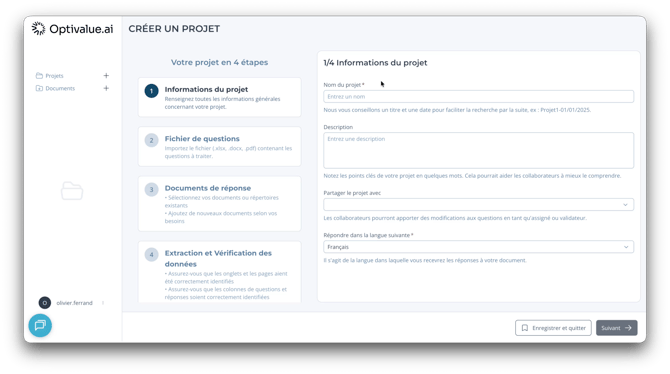
Step 1/4: general project information.
Step 2 : Import your questionnaire and tick "Save as template". On step 2/4, import (or drag and drop) your questions file, then tick the Save as template box. This keeps the questionnaire so you can reuse it in future projects and save time.
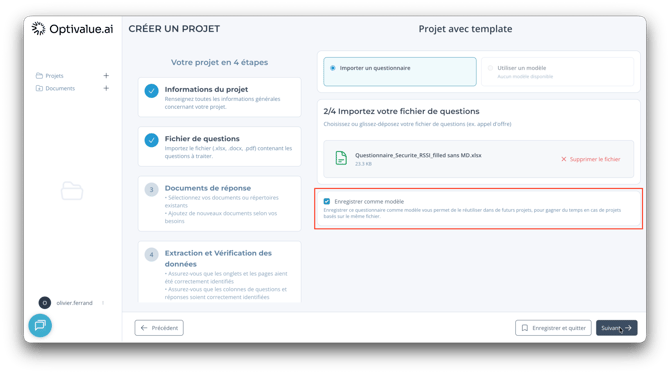
Tick "Save as template" below the imported file.
Step 3 : Select your source documents. Requirement extraction starts automatically. Once it is done, on step 3/4 select the reference documents the AI will use to find answers, from your library or by adding them manually.
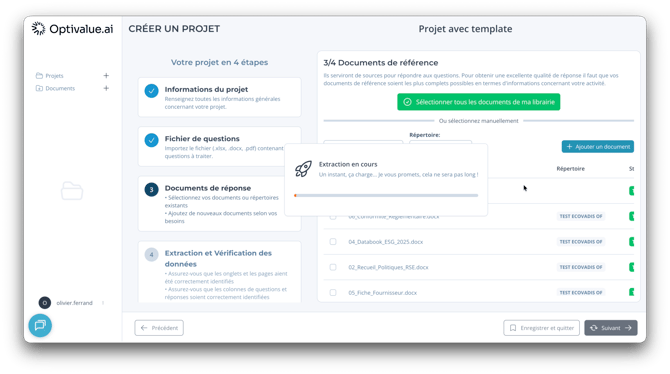
Extraction runs, then you choose the source documents.
Step 4 : Validate the columns and run the extraction. On step 4/4, check the extraction preview: the question and answer columns must be correctly detected on every page. Fix any errors, then click Run analysis.
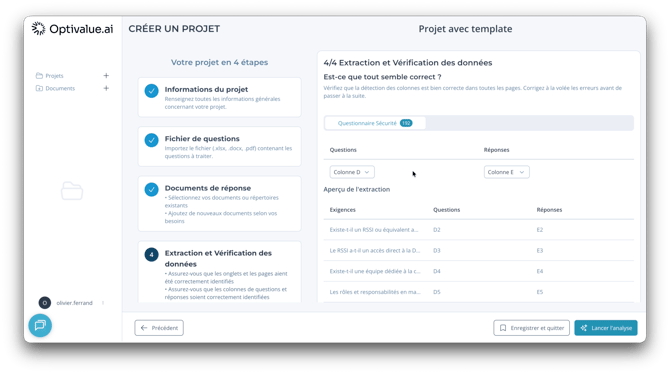
Validate the columns using the preview, then run the analysis.
Step 5 : Answers fill in. Answers come in gradually, each with its confidence score. You can review them, edit them, then export the project.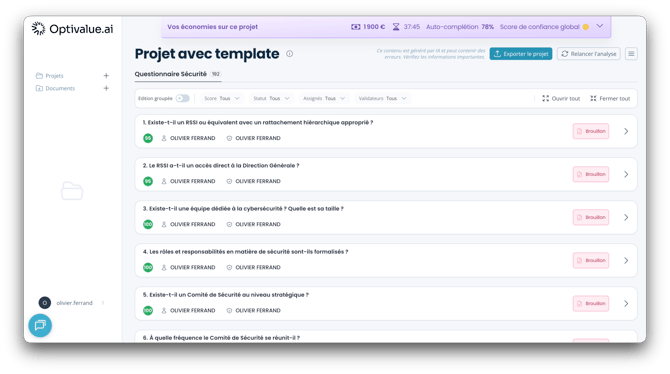
Answers arrive gradually, each with its confidence score.
2. Finding, downloading or deleting a template
Once the project is validated, open your Account and the Question templates tab (app.optivalue.ai/account/questions-templates). The template uses the original project name as its title. From this list you can download or delete it if you wish.
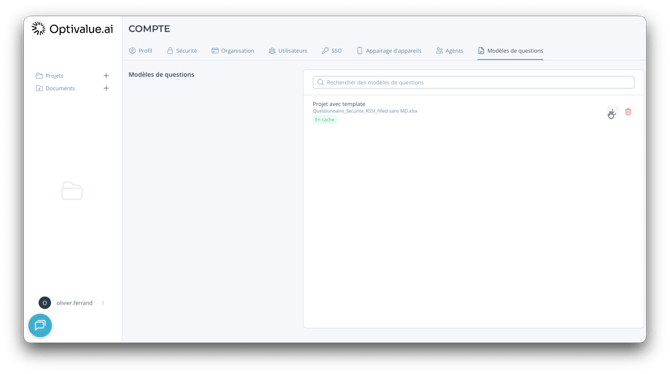
"Question templates" tab: the template carries the project name.
3. Creating a project from a saved template
Step 1 : Create a new project as usual and fill in the information on step 1/4.
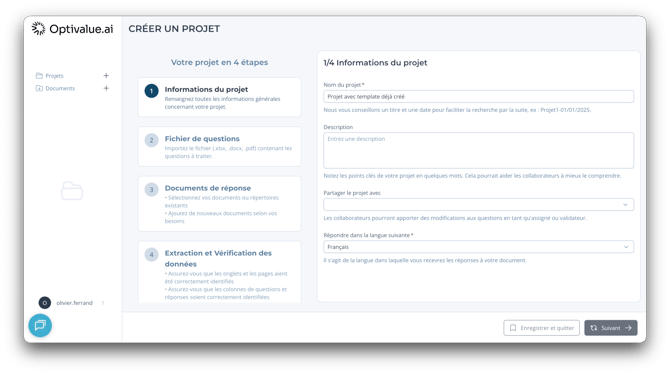
Create a new project as usual.
Step 2 : Choose "Use a template". On step 2/4, instead of importing a questionnaire, select Use a template, then choose the template you want from the drop-down list.
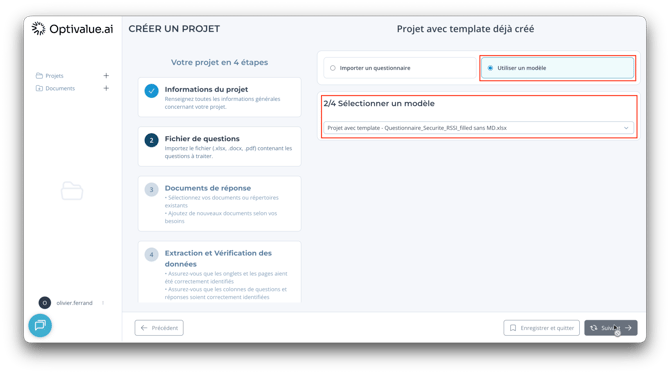
Select "Use a template", then pick it from the list.
Step 3 : Select your documents. No extraction to re-run: you go straight to selecting the reference documents (step 3/4).
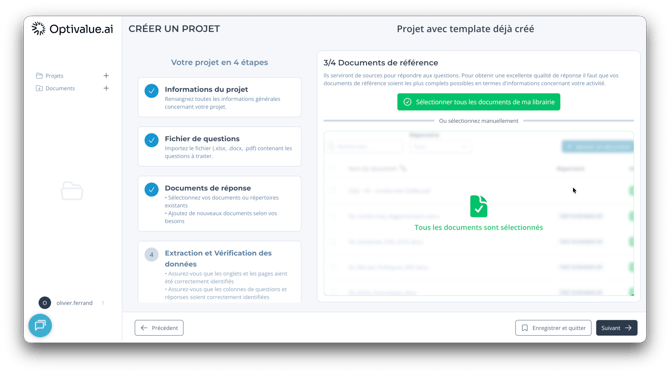
No extraction: you go straight to document selection.
Step 4 : Validate and run the analysis. On step 4/4, check the answer columns and requirement validation, then run the analysis. The time saving comes from the structure already remembered by the template.
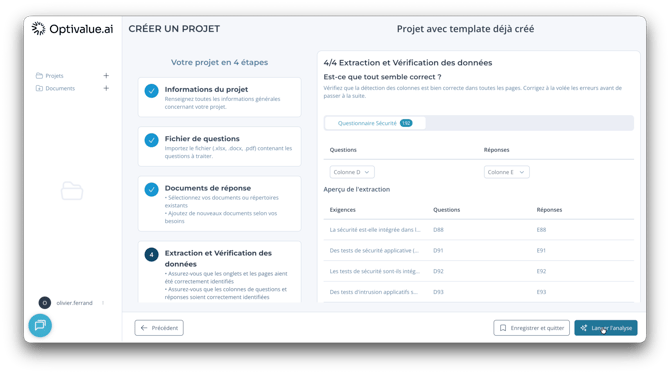
Validate the answer columns and requirements, then run the analysis.
Good to know
A template only stores the questionnaire structure (requirements and columns), not your reference documents or the generated answers: you choose new source documents for each project.
Still stuck?
Contact our team via the chatbot at the bottom right of the app: we'll help you get unblocked.